
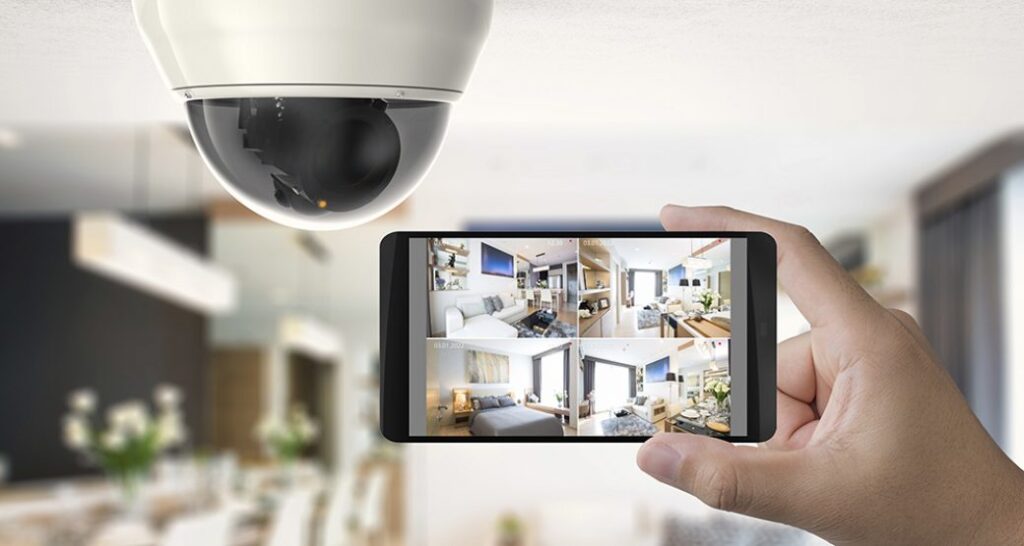
With the rise of smart homes and remote monitoring, installing a security camera in your house has never been easier. In this article, we’ll guide you through the process of setting up a home security camera using your smartphone.
Why Choose a Smartphone-controlled Security Camera?
Smartphones have become an essential tool for many tasks, including controlling home security cameras. With the right device and app, you can monitor your home remotely, receive notifications when motion is detected, and even access live footage of your premises.
Benefits of Using a Smartphone-Controlled Security Camera
- Convenience: Access your camera’s feed from anywhere using your smartphone.
- Remote Monitoring: Monitor your property from work or while you’re away.
- Motion Alerts: Receive notifications when motion is detected, so you can take action promptly.
Popular Features of Smart Home Security Cameras
- Live Streaming: View real-time video feeds from multiple cameras simultaneously.
- Two-Way Audio: Communicate with visitors or intruders using the camera’s built-in microphone and speaker.
- Cloud Storage: Store footage for future reference or to share with law enforcement.
Choosing the Right Camera for Your Needs
There are several factors to consider when selecting a smartphone-controlled security camera:
- Compatibility: Make sure the camera is compatible with your smartphone operating system (iOS or Android).
- Resolution and Field of View: Choose a camera with high resolution and a wide field of view to capture more detail.
- Weather Resistance: If you plan to install the camera outdoors, ensure it’s weather-resistant to withstand extreme temperatures.
Tips for Selecting the Right Camera
- Consider your specific needs: monitor doors, windows, or outdoor areas.
- Choose a camera with night vision capabilities if you want to capture footage at night.
- Look for a camera with high storage capacity and cloud backup options.
Some popular options include:
- Foscam FI9831P/B: A wireless security camera that offers 300° horizontal rotation and 120° vertical rotation. It also has built-in audio and a microSD card slot for storage.
- D-Link DCS-932L: A budget-friendly option with a fixed lens, but still provides excellent video quality.
Installing Your Security Camera
To install your security camera, follow these steps:
- Mount the Camera: Attach the camera to a wall or ceiling using the provided screws and bracket.
- Connect to Wi-Fi: Use the smartphone app to connect the camera to your home Wi-Fi network.
- Configure the App: Launch the app and follow the prompts to set up the camera’s motion detection, alerts, and other features.
Additional Installation Tips
- Ensure the camera is installed at a height where it can capture a clear view of the area you want to monitor.
- Consider installing multiple cameras to ensure comprehensive coverage.
- Position the camera in a spot with good lighting to improve video quality.
Frequently Asked Questions (FAQs)
Q: How do I install a security camera on my smartphone?
A: To install a security camera on your smartphone, follow these steps:
- Connect the camera to Wi-Fi using the smartphone app.
- Launch the app and configure the camera’s motion detection, alerts, and other features.
Q: Can I use a security camera indoors or outdoors?
A: Yes, most security cameras are designed for both indoor and outdoor use. However, ensure you choose a weather-resistant model if you plan to install it outside.
Q: How do I access live footage from my security camera?
A: To access live footage from your security camera, launch the app and select the camera you want to monitor. You can then view real-time video feeds and receive motion alerts.
Q: Can I use a security camera with multiple devices?
A: Yes, many security cameras support multi-device capabilities, allowing you to monitor multiple locations simultaneously.
Q: Is my security camera data secure?
A: Most reputable manufacturers ensure that their security cameras are secure and comply with industry standards for data protection.


