
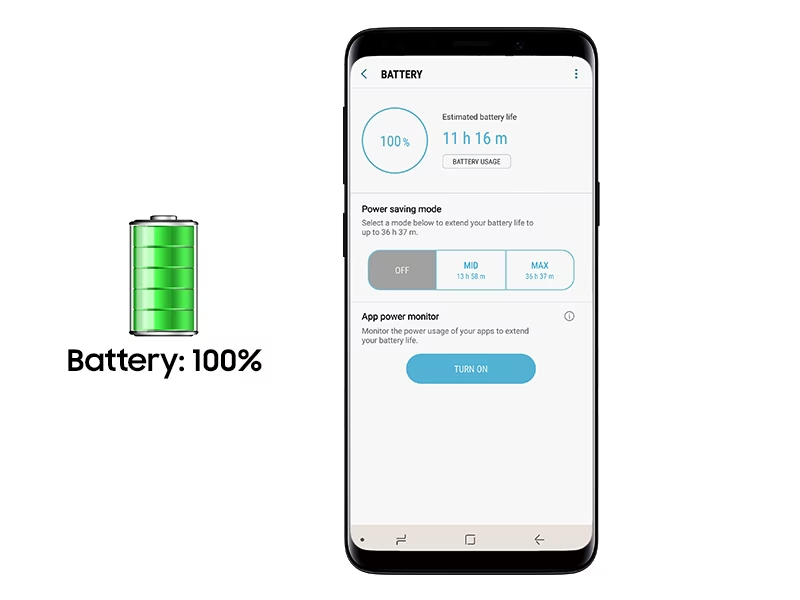
As you’re enjoying your new Samsung Galaxy with the latest Android OS, you might start to notice that the battery life is not as long-lasting as you expected. Don’t worry; we’ve got you covered! With a few simple tweaks and tricks, you can significantly improve your smartphone’s battery efficiency.
Understanding Android’s Battery Management
Unlike iOS, Android offers more control over device usage, allowing us to optimize our phone’s power consumption in line with our needs. Let’s dive into some essential tips to help you get the most out of your Galaxy’s battery life.
Managing Active Connections
Before we begin, let’s take a look at how to manage active connections on your Samsung Galaxy:
- If you’re not using Bluetooth, disengage it from the menu settings by sliding down and dragging the screen from top to bottom.
- Disable Wi-Fi when not in use to avoid unnecessary battery drain.
- If you need to stay connected but don’t require phone calls or texts, switch to airplane mode while keeping Wi-Fi active.
4G Network and GPS
When using your Samsung Galaxy with a strong signal:
- Consider disabling the 4G network to prevent excessive battery consumption. You can reactivate it when Wi-Fi becomes unavailable.
- If you don’t need precise location data, switch to Wi-Fi-based GPS or enable the eco-mode (limited to WiFi and mobile triangulation) for a more energy-efficient experience.
Display Settings
Optimizing your display settings can significantly impact battery life:
- In the menu settings, adjust the screen brightness manually to achieve better results.
- If you prefer an automatic brightness setting, try reducing it or exploring alternative options like adaptive brightness, which adjusts automatically based on ambient light conditions.
Power-Saving Mode
Most Samsung Galaxy devices come equipped with a built-in power-saving mode. This feature can be activated in the menu settings and will help reduce unnecessary power consumption:
- Set your screen timeout to 30 seconds or lower to minimize display activity.
- Turn off notifications and vibrations during sleep hours.
Monitoring Battery Usage
To better understand which factors are contributing to battery drain, you can access the built-in statistics app on your Samsung Galaxy. This tool will provide detailed insights into power consumption patterns:
- Use the provided data to identify areas where you can make adjustments to optimize performance.
- Consider using apps like Greenify, which helps eliminate background processes and conserve energy.
Power Banks for Emergency Charging
In situations where a dead battery is unavoidable, consider investing in a portable power bank:
- Look for models with high capacity (mAh) ratings, such as 20,000 mAh, to ensure multiple charging cycles.
- Choose a power bank compatible with your smartphone model and capable of fast charging.
Additional Tips
To further enhance your Samsung Galaxy’s battery life, consider the following additional tips:
- Limit your social media usage, especially during peak hours when networks are busiest.
- Disable location services for apps that don’t require them.
- Keep your device’s software up-to-date with the latest Android OS and security patches.
By implementing these tips and tricks, you can significantly extend your Samsung Galaxy’s battery life and enjoy a more efficient mobile experience.


